(9.7-en) Xelion MacOS App
Download & Install
Go to the app store and search for ‘Xelion’.
Download the app.
Give the app permissions when it asks.
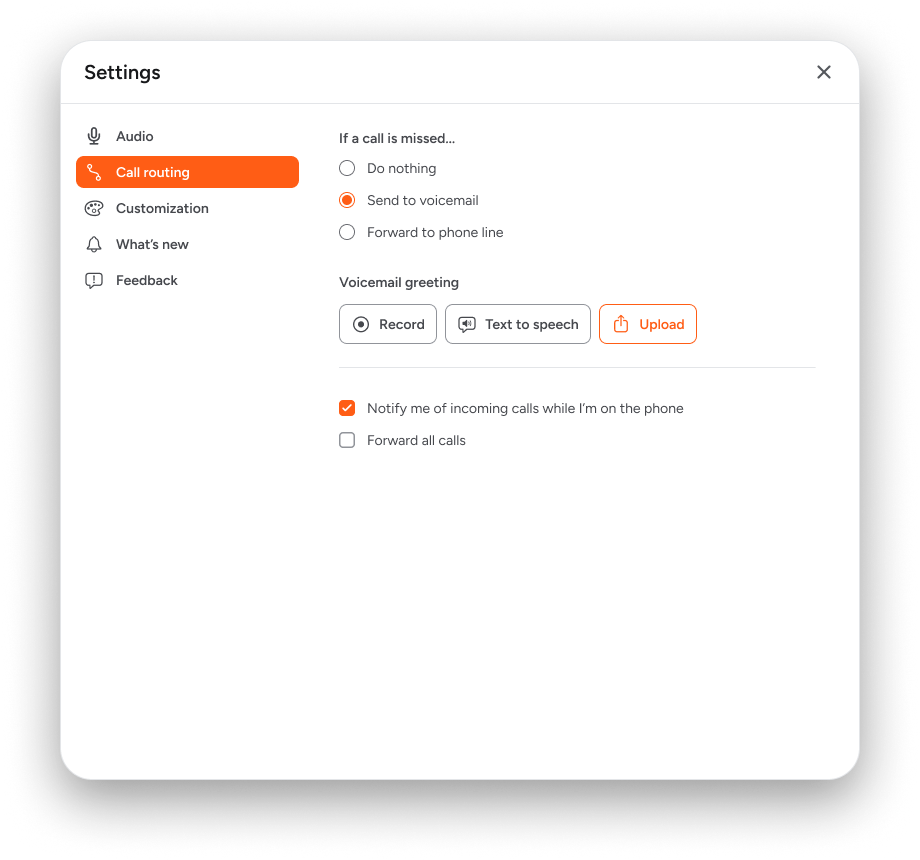
Log in in the manner that is recommended by your service provider.

The website and the app use the language that is set on your device.
View recent communication
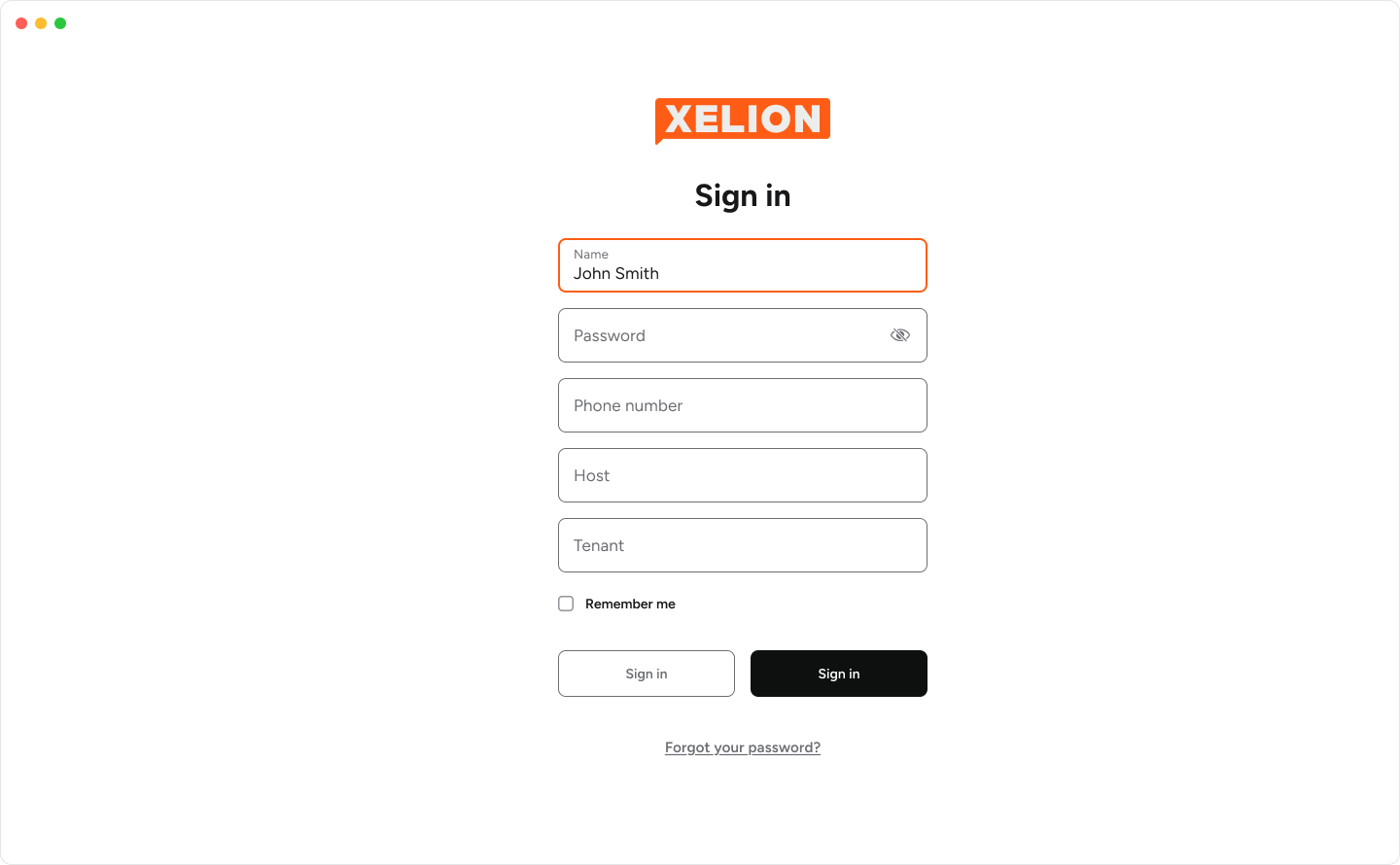
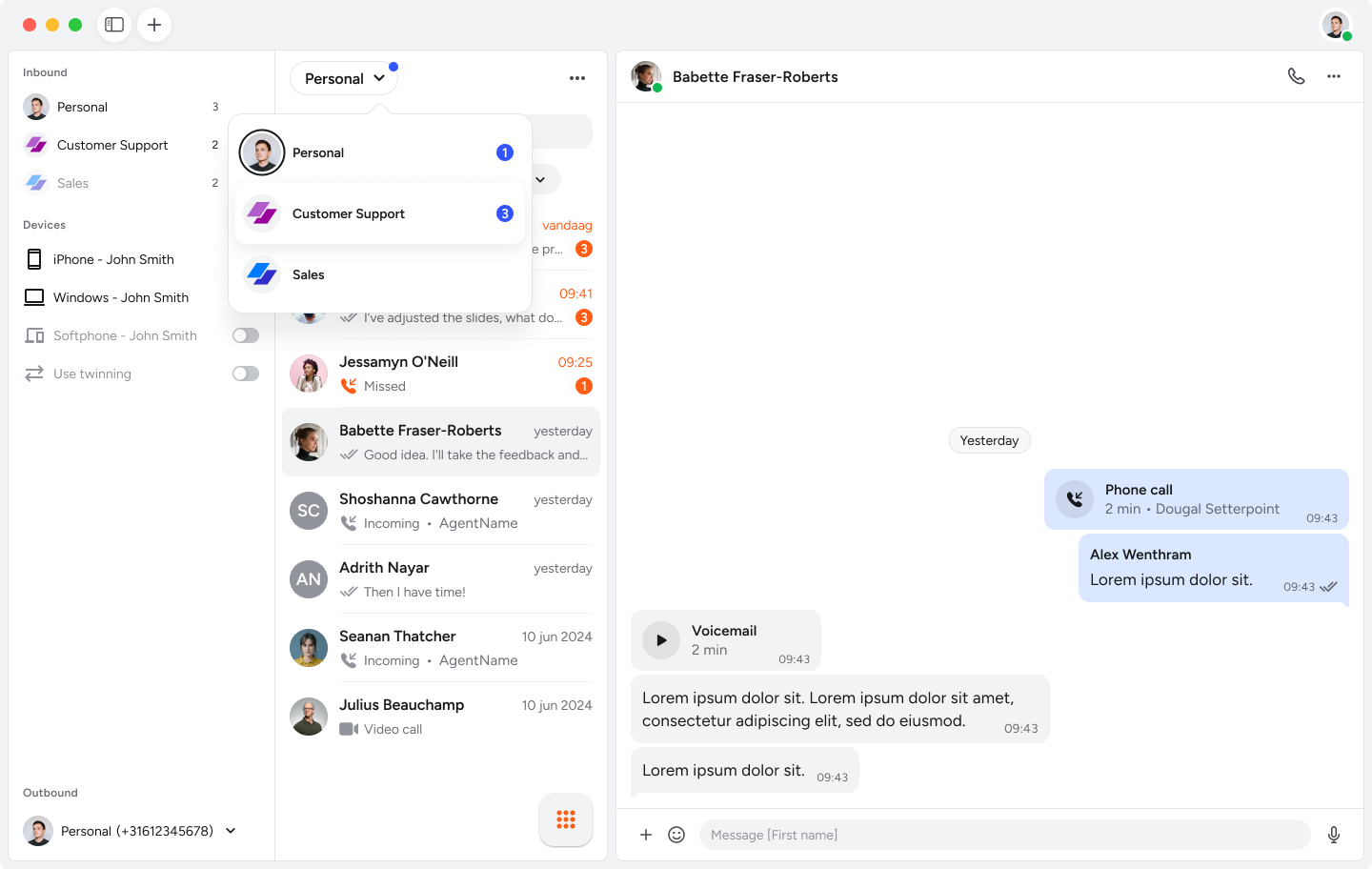
At the top-left, select the line of which you want to see the most recent communication.
The default view is your personal line.Filter your communication by status if you want.
You can select:‘unread’ for all unread messages and unviewed calls;
‘missed’ for all missed phone calls;
‘all’ to see everything.
Filter your communication by type, if you want. You can select:
'calls’,
‘voicemail’,
‘messages’
‘all’.
Set your status
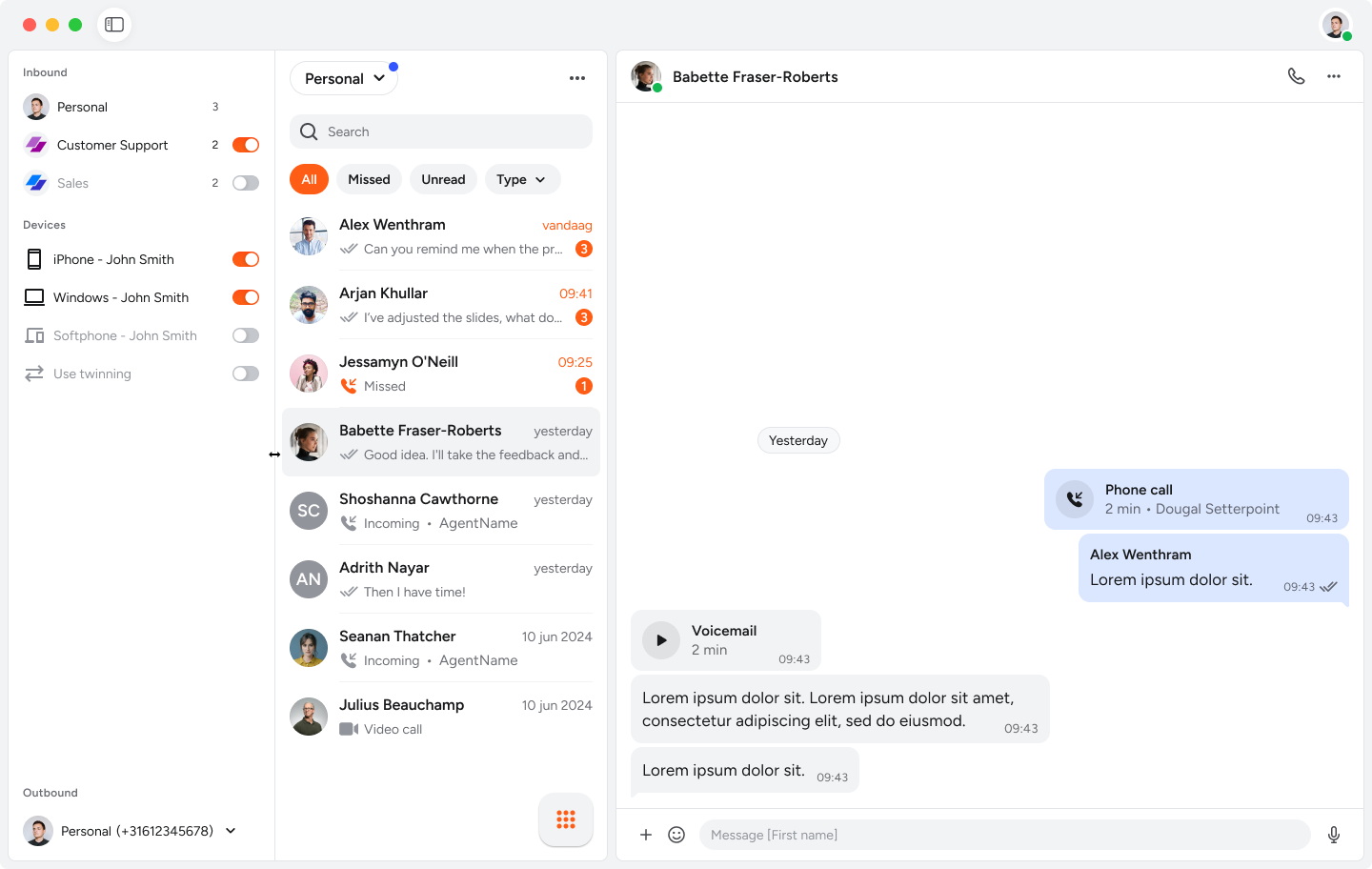
Press your avatar at the top right.
Your user profile opens.Select your status in the drop-down menu.

Administrators can make one of more custom statuses in Xelion.
If you see a status that is unclear to you, ask your administrator about it.
Choose your lines
Make sure the sidebar menu is visible.
Select all lines for which you want to receive calls under ‘incoming’.
Select all devices on which you want to receive calls under ‘devices’.
Select your outgoing line from the drop down menu.
Choose if you want to call anonymously.
Make a call
There are several ways to make a phone call.
Search a contact in the search bar of the communications overview.
Press the button with the dots for more options.
Press the receiver icon.Open the contact history with a contacts.
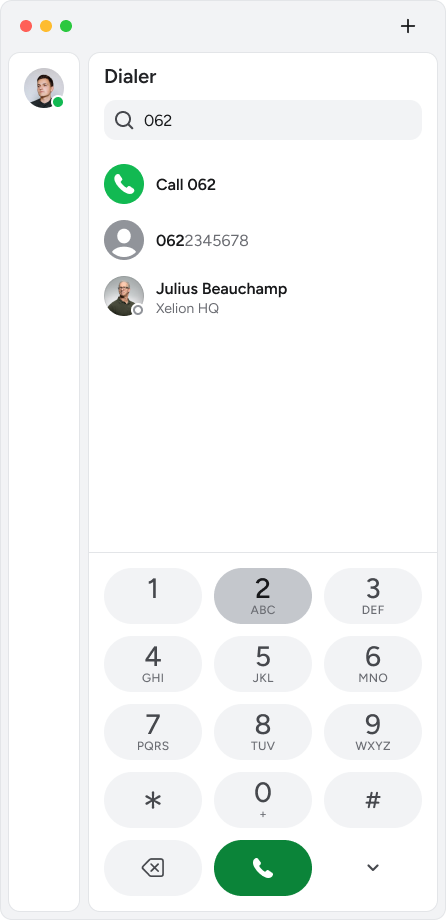
Press the receiver at the top.Enter a phone number with the dial pad.
Press the receiver.Enter a phone number in the search bar.
Press the receiver.
If a contact has multiple phone numbers, you can choose one. If you do not choose, Xelion will wait a brief time, and then call the last contacted phone number.
Transfer a call
You need to be in an active conversation.
In the calls window, press the transfer button.
The active conversation is placed on hold and a pop up opens in which you can select a name or number.Select the contact to whom you want to transfer the original conversation.
Once the call is accepted, announce that you want to transfer the original conversation.
In the section for the call you want to transfer, click the transfer button again.
Set up your voicemail
Your voicemail box should already be active.
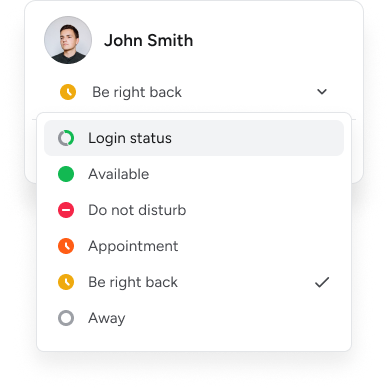
Press your avatar at the top right.
Your user profile opens.Press Settings.
Press Call Routing.
Press the setting to send missed calls to your voicemail box.
Record, upload or generate a voicemail message.